Hi Folks
Is it possible to store the customers CLI data if they enter a number in a Number Entry block?
I would like to use a number entry to get confirmation from a customer that they have listened to a prompt (t&c’s) and when they press the number it will take them to the next block. But can I somehow save the CLI and have a record of it, so we can use it as an acknowledgement of the t&c’s?
Thank you
Stuart
HI @FeenoAye
Yes, you can absolutely do that in Liberty Converse—and the good news is you don’t need a Number Entry block for it. A simple Menu block will do the job nicely.
When the customer presses a key to confirm they’ve listened to the terms and conditions, the system can capture their CLI (caller ID) and store it as part of the interaction record. This gives you a clear acknowledgement without adding extra complexity.
How
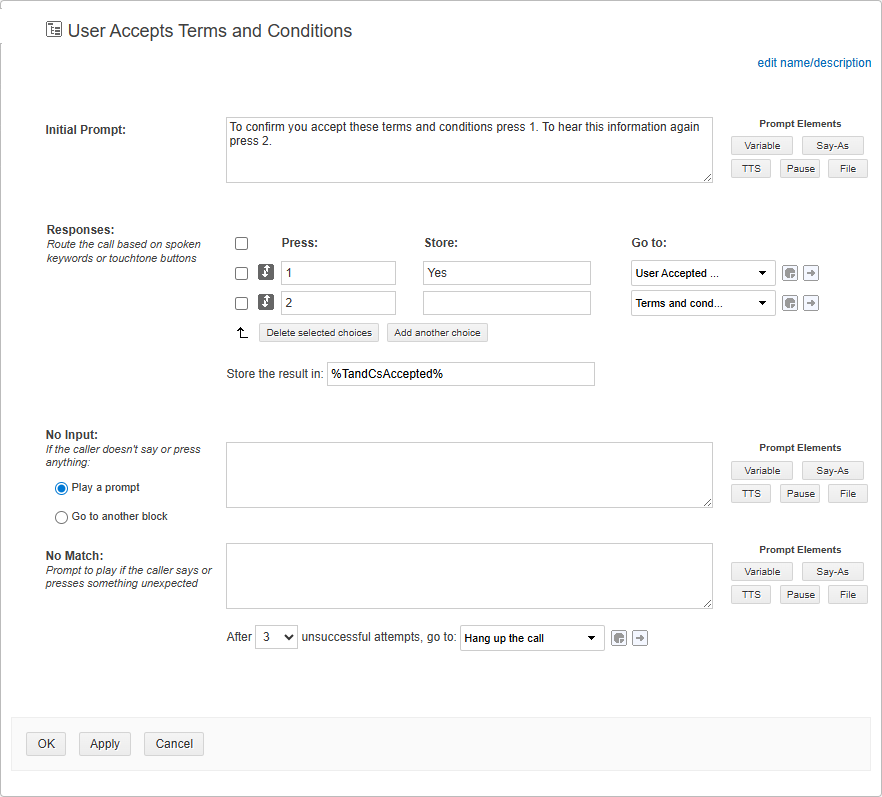
First, you’ll want to play the Terms and Conditions message to the caller. Once that’s done, move them into a Menu Block. In this example, I’ve given two options:
-
Press 1 to accept
-
Press 2 to listen again
If the caller hangs up, that’s a clear indication they didn’t accept the terms.
When the caller presses 1, you’ll see I’ve added the word “Yes” and created a variable called %TandCsAccepted% to store that result. This way, you have a record confirming they accepted the T&Cs.
How do you want to record this?
You’ve got a couple of options here:
-
Send an email for each call to confirm the customer accepted the terms.
-
Or, my personal favourite – use a Post block to store the results in a CSV file. This gives you a neat record you can refer back to whenever you need, and it keeps everything organised in one place.
How to Set Up a Post Block to Save Data to a Daily CSV File
-
Add a Post Block
In your dialogue flow, insert a Post Block after the Menu block where the caller confirms acceptance of the Terms and Conditions.
-
Name the Block
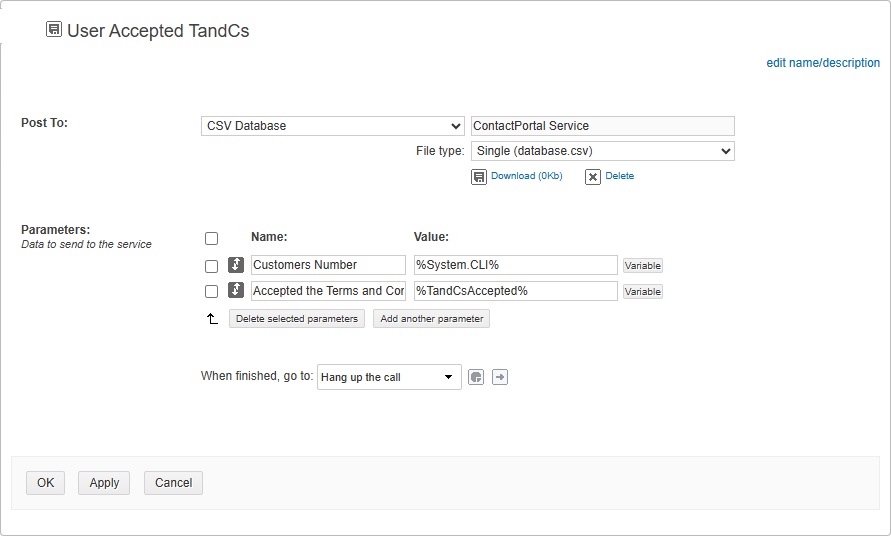
Give it a clear name, such as User Accepted T&Cs. You can also add a short description like Logs CLI and acceptance status to a daily CSV file.
-
Choose Where to Post
In the Post To dropdown, select CSV Database.
For File Type, choose Single (database.csv). This ensures a new file is created each day.
-
Add Parameters
Under Parameters, click Add another parameter and set:
These will appear as columns in your CSV file.
-
Decide What Happens Next
In When finished, go to, choose the next block in your flow (or select hang up if this is the last step).
-
Apply and Save
Click Apply to validate your settings, then OK to save the block.
(Just remember to link the blocks in your flow so it runs this Post Block).
This CSV file will be stored on your server.
If you have direct access, you can simply navigate to the folder where the files are saved.
Alternatively, you can set up an API to pull the data automatically. Full details on how to do this can be found here: https://docs.netcall.com/docs/liberty-converse/5.14/liberty-converse/developer-guide
And for quick access, there’s also a handy download icon right within the Post Block, as shown in the image (once you have saved the block).
Hope this helps let me know if you need any further guidance.
Kind Regards.
Jonathan
Thanks Jonathan, extremely helpful, as always! I’ve managed to set up the blocks and tested, the CLI is pulling through to the CSV report, all good there. I’m finding it a bit harder to work out the API. I’ve created and API key in the Platform but not really sure about where to go from there.
@FeenoAye Great to hear the blocks and CSV report are working nicely! 
I did a bit of digging and, unfortunately, there isn’t an API available to automate the download at the moment (my mistake). The only way to grab the latest file is to head into the post block and click the Download button manually.
If you need to find the files on the server (and have access), they’re stored here:
D:\report\%PartitionID%\%DialogueName%\Published
I’ve spoken to our Dev team and they’ll look at adding a new API in the future to help automate this process. For now though, the manual download is the only option.
Kind Regards.
Jonathan
No worries, thank you for following that up. Many thanks again